Skip to content
Desk & Dowel

HUB 05 · Small-Space Setups

Monitor Arm Problems and How to Fix Them

Sagging and drifting-up look like the same fault and have opposite causes: one monitor is too heavy for the tension you set, the other is lighter than the arm's published minimum load. Start by finding out which you have.

By Stephen V.Updated How we pick
#ad

We earn a commission when you buy through our Amazon links, at no extra cost to you. It never affects our rankings, and we say so when the cheaper product is the better buy. How this works.

Two complaints dominate this category and they look identical from the outside: the screen will not stay where you put it. They have opposite causes, and the fix for one makes the other worse.

  • It sags. You set the height, and over minutes or weeks the screen creeps down. The monitor is heavier than the spring tension currently set, or heavier than the arm's published ceiling.
  • It drifts up. You push the screen down and it floats back. The monitor is lighterthan the arm's published minimum load — typically 4.4 lb — so the spring is pushing against almost nothing.

Which means the first thing to do is not adjust anything. It is to find two numbers: what your monitor weighs, and what your arm publishes as its load range. The weight is on the monitor's spec sheet or its box. The range is on the arm's listing — the arms on this page publish 4.4 to 19.8 lb, 37.4 lb and 4.4 to 19.8 lb respectively, and the bottom of that range is the number nobody reads.

Separating this page from the install guide

If the arm is not up yet, or it went wrong while you were putting it up, you want how to install a monitor arminstead — that page covers the measurements, the mounting order and the five things that go wrong during installation. This page is for an arm that is already up and has started misbehaving, which is a different list with different causes: tension that was set for a screen you no longer own, a clamp that has relaxed into a soft top, a tilt joint that has loosened, a cable that snags at full extension.

Problem 1: the screen sags

Mechanism.A gas-spring arm balances the monitor's weight against a spring whose force you set with a tension screw. Set it for a light screen and hang a heavy one on it and the screen wins. HUANUO publishes tension adjustment as step three of installation — “adjust tension according to your monitor weight” — and it is the step most often skipped, because the arm appears to work until you let go of it.

Fix, in order.Find the tension screw (usually an Allen screw at the base of the gas spring, sometimes behind a cover). Take the monitor's weight in one hand so the spring is unloaded, then tighten in small increments — a quarter turn at a time — and test after each. Over-tightening gives you problem 2. If you reach the end of the screw's travel and it still sags, the monitor is over the arm's published ceiling and no adjustment will hold it: that is a heavy-duty arm, and monitor arms for heavy monitors is the page. Check the figure first — our monitor arm weight capacity guide explains why a panel's published weight sometimes excludes its own stand.

Problem 2: the screen drifts upward

Mechanism. The same spring, now too strong for the load. This is far more common than it used to be, because the screens people mount have got lighter: a thin 24-inch panel can sit close to the 4.4 lb floor these arms publish, and a portable monitoris nowhere near it — our portable monitor comparison records one that publishes 1.1 lb, which is a quarter of the lightest load any arm on this site states.

Fix. Back the tension screw off, a quarter turn at a time, with the screen's weight supported. If it reaches the end of its travel and still floats, you are below the arm's published minimum and the arm cannot be made to work: the honest options are a lighter-class mount, a manual-tension arm (which holds position by friction rather than by spring force), or a riser. What you should not do is add weight to the back of the monitor.

Problem 3: the screen shakes when you type

Mechanism.Usually not the arm at all. A clamp couples the monitor rigidly to the desk, so every keystroke that moves the desk moves the screen — and on a spliced two-piece top, a thin top, or a desk with a loose frame, that movement is real. An arm does not create the wobble; it makes the wobble visible by putting a large object on the end of a lever.

Fix, in order. First, check it is the desk: push the desk's near edge with the screen stationary and see whether the top moves. If it does, that is a wobbling desk, and the arm is a symptom. Second, move the clamp — the stiffest point on any desk is directly over a leg or a frame upright, and the softest is the middle of an unsupported span. Third, switch to a grommet baseif your desk has a hole or you are allowed to drill one: the load goes down through the top's thickness instead of pinching an edge. Fourth, add a backing plate or a hardwood offcut under the clamp to spread the pressure — will a monitor arm damage my desk covers that properly by material.

Problem 4: the screen will not hold its tilt

Mechanism. Tilt is a separate joint from height, with its own friction, and on most arms in this class it is held by the VESA plate screws plus a small tension screw at the head. A screen that slowly nods forward is almost always one of those two under-torqued, not a failed spring.

Fix.Tighten the four VESA screws evenly — snug, not forced, because they are threading into a plastic chassis on many monitors — then the head's tension screw. Check the published tilt range while you are there: these arms publish −50° to +30°, −50° to +85° and +30°/−40°. If you are asking for more tilt than the arm publishes, the joint is at its stop rather than slipping.

Problem 5: the arm does not reach far enough

Mechanism.A figure that was never checked. Extension and rise are published numbers — the ErGear states 21.2 inches of extension and 22.2 inches of rise — and an arm cannot exceed them. The other half of this complaint is geometric and has nothing to do with the arm: on a desk pushed flat against a wall, the arm's pivot is already at the back of the desk and there is nowhere further back to go.

Fix. If the desk is against a wall and you need the screen further away, the answer is a different mounting point: a wall mount puts the pivot behind the desk entirely, and arms for a desk against a wall ranks the clamp arms whose geometry tolerates it. If the problem is depth rather than reach, monitor size and distance for small desks has the arithmetic — sometimes the honest answer is a smaller panel.

Problem 6: a cable unplugs or snags at full extension

Mechanism. The cable was routed with the arm in one position and the arm is the part that changes length. This is the same failure that pulls a monitor cable out of a standing desk on its first full rise, and the cause is identical: slack measured at the wrong moment, or cable ties fixed to the moving part.

Fix. Extend the arm to its furthest and highest position, route the cable there, leave a visible loop, and secure it only to the staticpart — the desk, the clamp body, the wall. Never to the arm's moving segment. Our cable management picks are the clips and sleeves for it, and standing desk ergonomics covers the same rule for a desk that moves.

The three cases no adjustment fixes

It is worth saying plainly, because the category rarely does:

  1. A glass, hollow-core or very thin top. HUANUO's own listing recommends a wooden top with a beam-free underside. A clamp on glass is a crack waiting for a knock.
  2. A monitor outside the published load range— at either end. Too heavy sags; too light floats.
  3. A monitor with no VESA pattern. Some models take a manufacturer adapter; where there is none, see how to mount a monitor without VESA.

In all three, a riser or a freestanding stand is the answer, and the trade is that neither returns the desk surface an arm would have. If you have not bought anything yet, are monitor arms worth it is the page that decides it, and will a monitor arm fit my desk is the four-measurement check.

The short answer

Quick picks

#ProductBest forScorePrice
01
HUANUO HUANUO Single Monitor Mount (Gas Spring)
HUANUO Single Monitor Mount (Gas Spring)

The arm to buy when the problem is the arm. Its published load window runs from 4.4 to 19.8 lb, which is wide at both ends — and a wide window is exactly what prevents both of the faults this page opens with, because sag and drift-up are both the symptom of a screen sitting outside the range.

The widest published load window
9.2
$42.99Amazon
02
ErGear ErGear Heavy Duty Monitor Arm (13–49 in)
ErGear Heavy Duty Monitor Arm (13–49 in)

The answer when the screen is simply heavier than the arm you own. 37.4 lb published capacity against the 19.8 lb that is standard in this price class, plus the only published clamp AND grommet ranges on the page — so you can check the desk and the screen before you spend anything.

When the screen is too heavy for the arm
8.4
$41.99Amazon
03
HUANUO HUANUO FlowLift Single Monitor Mount
HUANUO FlowLift Single Monitor Mount

The answer when the clamp is the problem rather than the spring. It ships with a grommet base as well as a C-clamp, so the load passes down through the desktop instead of pinching its edge — which is the fix for both a marked top and a screen that shakes every time you type.

When the clamp is what is failing
9.1
$36.99Amazon
04
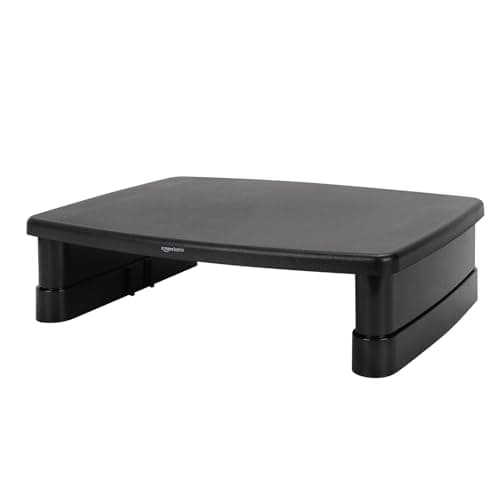
Amazon Basics Amazon Basics 3-Level Monitor Riser
Amazon Basics 3-Level Monitor Riser

The pick for the reader whose honest answer is "no arm". A glass top, a hollow-core top, a desk flush to a wall or a monitor with no VESA pattern are all cases no adjustment fixes — and a riser raises the screen for a fifth of the price, at the cost of the surface an arm would have returned.

When no arm will work at all
7.8
$21.59Amazon

#ad · Live prices from the Amazon Product API, as of October 28, 2026. Where we have no verified live price we show none — we would rather leave a gap than print a number that has rotted.

In detail

The picks, in full

01
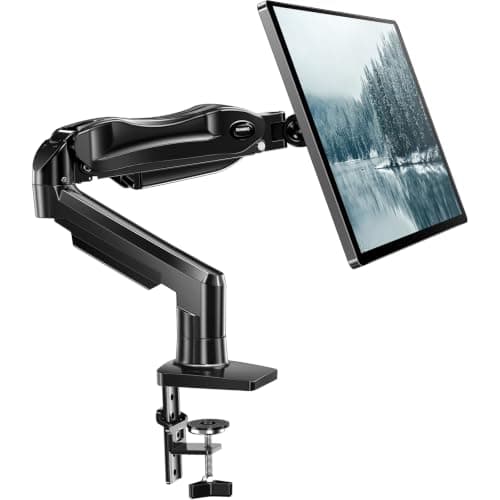
HUANUO HUANUO Single Monitor Mount (Gas Spring)

The widest published load window

HUANUO Single Monitor Mount (Gas Spring)

Screen fit
13–32 in
Weight range
4.4–19.8 lb (published)
Mount
C-clamp or grommet, 0.59–3.54 in
Lift
Up to 39.6 cm from the desktop
Motion
−50° to +30° tilt, ±90° swivel, 360° rotate
9.2/10

The arm to buy when the problem is the arm. Its published load window runs from 4.4 to 19.8 lb, which is wide at both ends — and a wide window is exactly what prevents both of the faults this page opens with, because sag and drift-up are both the symptom of a screen sitting outside the range.

Fixes sag
9.2
Fixes drift-up
9.4
Desk compatibility
8.6
Surface returned
9.6

Pros

  • A published 4.4 lb floor and a 19.8 lb ceiling. Most of the failures on this page are a screen outside that band, and a band this wide is the cheapest insurance against both of them
  • Both bases in the box — C-clamp and grommet — so if the clamp is what is transmitting your keystrokes into the screen, the fix is in the same carton rather than another order
  • Published clamp range of 0.59 to 3.54 inches, which is a real number you can check against your own top before you buy
  • HUANUO publishes tension adjustment as step 3 of installation and states 20,000 motion tests on automotive-grade gas spring cores — the detail that matters for a part that creeps over months
  • One-piece design, about three minutes to install, so re-seating it on a different part of the desk edge is a small job rather than an afternoon

Cons

  • Wooden tops only. HUANUO excludes glass and plastic and recommends a beam-free underside, which rules out a lot of apartment desks
  • 32 inches is the ceiling. A 34-inch ultrawide is outside the published fit and needs the heavy-duty class below
  • Tilt tops out at +30 degrees, which is less upward tilt than its FlowLift sibling publishes
  • The 39.6 cm lift figure is from the desktop, so on a tall desk it may still not reach a standing eye line — our standing desk ergonomics guide covers that second height

Skip this if…

…your desk is glass or hollow-core, or your screen is over 19.8 lb. Those are the two cases where a different product rather than a different adjustment is the answer, and both are covered below.

$42.99View on Amazon

$49.9914% off

Price as of October 28, 2026. Prices change — Amazon's is the one that counts.

#ad · we may earn a commission from this link to HUANUO Single Monitor Mount (Gas Spring)

02
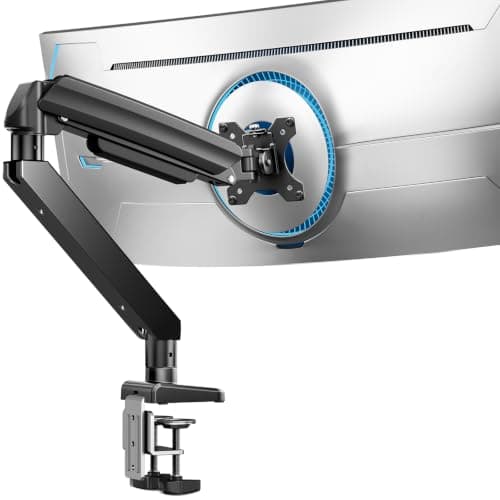
ErGear ErGear Heavy Duty Monitor Arm (13–49 in)

When the screen is too heavy for the arm

ErGear Heavy Duty Monitor Arm (13–49 in)

Capacity
37.4 lb (published)
Screens
1, 13–49 in
Clamp / grommet
0.39–3.15 in / 0.39–2 in
Reach
Extends 21.2 in, raises 22.2 in
Motion
+30°/−40° tilt, ±90° swivel, 360° rotate
8.4/10

The answer when the screen is simply heavier than the arm you own. 37.4 lb published capacity against the 19.8 lb that is standard in this price class, plus the only published clamp AND grommet ranges on the page — so you can check the desk and the screen before you spend anything.

Fixes sag
9.8
Fixes drift-up
5
Desk compatibility
9
Surface returned
9.6

Pros

  • 37.4 lb is roughly double the standard class, so a 32-inch 4K panel sits well inside the rating rather than at the edge of it — and a screen inside its rating does not sag
  • A dual C-clamp spreads the load across the back edge instead of pressing one point into a soft top, which is the mechanism behind most clamp dents
  • Publishes both a clamp range and a grommet range, down to a 0.39 inch floor — the thinnest published figure here, so it works on a thin desk as well as a thick one
  • Publishes its reach: 21.2 inches of extension and 22.2 inches of rise. Short-reach complaints are usually an arm whose figures were never checked
  • Fits up to 49 inches, which is the only pick here that covers an ultrawide

Cons

  • The listing publishes no MINIMUM load, which makes it a gamble with a very light panel — on this page that is the specific cause of drift-up, so a portable monitor on this arm is a bad idea
  • A dual clamp wants more clear rear edge than a single one, not less. Measure the free span before ordering
  • It publishes a 10-year durability expectation rather than a warranty term, which is a marketing figure rather than a commitment
  • Overkill for a 24-inch panel, and a heavier arm on a thin top concentrates more weight on the same edge

Skip this if…

…your monitor is under about 8 lb. With no published load floor, the heavy-duty spring is the wrong tool for a light screen and you will spend your life pushing it back down.

$41.99View on Amazon

$59.9930% off

Price as of October 28, 2026. Prices change — Amazon's is the one that counts.

#ad · we may earn a commission from this link to ErGear Heavy Duty Monitor Arm (13–49 in)

03
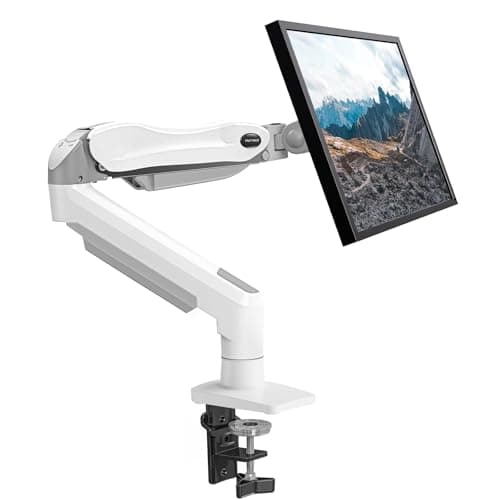
HUANUO HUANUO FlowLift Single Monitor Mount

When the clamp is what is failing

HUANUO FlowLift Single Monitor Mount

Screen fit
13–32 in
Weight range
4.4–19.8 lb (published)
Mount
C-clamp or grommet, 0.59–3.54 in
Motion
−50° to +85° tilt, ±90° swivel, 360° rotate
Top material
Wooden recommended by maker
9.1/10

The answer when the clamp is the problem rather than the spring. It ships with a grommet base as well as a C-clamp, so the load passes down through the desktop instead of pinching its edge — which is the fix for both a marked top and a screen that shakes every time you type.

Fixes sag
8.4
Fixes drift-up
9
Desk compatibility
9.4
Surface returned
9.6

Pros

  • A grommet base spreads the load through the thickness of the top rather than crushing one edge, which is the single best answer to clamp dents and to keystroke wobble
  • Published thickness range for both bases, so the compatibility question is answerable before purchase instead of after
  • +85 degrees of upward tilt, by far the most on this page — useful if the screen has to be aimed down at you from a high mount
  • Same 4.4 to 19.8 lb window as its gas-spring sibling, so it is immune to the same two failure modes
  • HUANUO states plainly that it wants a wooden top with a beam-free underside, which is checkable guidance rather than a disclaimer

Cons

  • A grommet base needs a hole in the desk — either an existing cable grommet in the right place, or one you drill, which a renter usually cannot
  • The published thickness floor is 0.59 inches, higher than the ErGear's 0.39, so a very thin top is out
  • 32-inch ceiling, same as the gas-spring version
  • If you use the C-clamp rather than the grommet, you have bought the same arm as its sibling and solved nothing

Skip this if…

…you cannot drill the desk and the clamp is the thing that is failing. Then the honest answer is a different mounting approach entirely — a wall mount, a freestanding stand or a riser.

$36.99View on Amazon

$47.9923% off

Price as of October 28, 2026. Prices change — Amazon's is the one that counts.

#ad · we may earn a commission from this link to HUANUO FlowLift Single Monitor Mount

04
Amazon Basics Amazon Basics 3-Level Monitor Riser

When no arm will work at all

Amazon Basics 3-Level Monitor Riser

Top surface
≈11.6 × 11 in (published)
Heights
2.87 / 4.2 / 4.8 in
Capacity
22 lb (published)
Material
ABS plastic, detachable legs
Feet
Non-skid
7.8/10

The pick for the reader whose honest answer is "no arm". A glass top, a hollow-core top, a desk flush to a wall or a monitor with no VESA pattern are all cases no adjustment fixes — and a riser raises the screen for a fifth of the price, at the cost of the surface an arm would have returned.

Fixes sag
10
Fixes drift-up
10
Desk compatibility
10
Surface returned
1

Pros

  • Needs nothing from the desk: no clamp, no hole, no free rear edge, no VESA pattern on the monitor
  • Three published heights rather than one, which is the difference between approximately right and actually right
  • 22 lb published capacity covers most 24 to 27-inch panels — more than some people assume from a plastic riser
  • Cheapest fix for a low screen by a wide margin, and the only one on this page that cannot sag, drift or wobble, because nothing moves
  • A storage slot underneath takes the keyboard when the desk is not in use

Cons

  • It returns NO desk surface. The riser's own footprint replaces the monitor stand's, which is the whole argument an arm wins and this one loses
  • 4.8 inches is the maximum lift, and a short user at a tall desk may need more than that
  • ABS plastic with detachable legs — Amazon's own listing says it is designed for stable everyday use rather than fixed-lock configurations, which is a careful way of saying do not lean on it
  • No tilt, no swivel, no depth adjustment. Where the screen sits is where it stays

Skip this if…

…your desk and monitor can take an arm. The arm costs more and does strictly more — a riser is the right answer to a constraint, not a preference.

$21.59View on Amazon

Price as of October 28, 2026. Prices change — Amazon's is the one that counts.

#ad · we may earn a commission from this link to Amazon Basics 3-Level Monitor Riser

Symptom to cause, in one table

SymptomMost likely causeFirst thing to try
Screen creeps downSpring tension set below the monitor's weightTighten the tension screw a quarter turn at a time
Screen floats upMonitor below the arm's published load floor (often 4.4 lb)Loosen tension; if it bottoms out, change the mount
Shakes when you typeThe desk, not the arm — or a clamp on an unsupported spanMove the clamp over a leg; then consider a grommet base
Will not hold tiltUnder-torqued VESA screws or head tensionTighten the four VESA screws evenly, then the head screw
Will not reachPublished extension exceeded, or the desk is against a wallCheck the published figure; then a wall mount
Cable pulls outSlack routed at the wrong position, or tied to the moving armRe-route at full extension with a visible loop
Dents or marks in the topClamp pressure concentrated on one edgeBacking plate, or switch to the grommet base

The two numbers to write down before you touch anything

Your monitor's weight.Not its screen size — its weight, and ideally the weight without its stand, because that is what hangs on the arm. Panel spec sheets sometimes publish only the with-stand figure, which overstates the load; monitor arm weight capacity covers how to read it.

Your arm's published load range, both ends.The ceiling tells you whether sag is fixable. The floor tells you whether drift-up is fixable. An arm that publishes only a maximum — the heavy-duty pick on this page is one — is a gamble with a light screen, and we have said so in its cons rather than leaving you to find out.

What “maintenance” actually means on a monitor arm

Very little, and that is worth saying because the question gets asked a lot. There is nothing to lubricate, nothing to replace and no service interval. What there is:

  • Re-check the clamp after the first fortnight. A clamp bites into a soft top and settles; a quarter turn after two weeks is normal and is the single most useful habit here.
  • Re-check the VESA screws yearly, or whenever the tilt starts to creep.
  • Re-set the tension when you change monitors. This is the one that catches people: the arm was correct for the old screen and is wrong for the new one, which is why a perfectly good arm starts sagging the week a new monitor arrives.
  • Nothing else. HUANUO publishes 20,000 motion tests and a five-year expectation on its gas spring cores; a gas spring either holds or it does not, and when it stops holding at every tension setting, it is done.

When to replace rather than adjust

Three signals. The tension screw reaches the end of its travel in either direction and the screen still moves. The clamp no longer holds its position on a top it used to hold. Or the monitor you own is outside the published range at either end — in which case the arm was never the right one and no amount of adjustment makes it so. For the heavy end, heavy-duty arms; for a thick or unusual top, arms for thick desks; for no-drill rentals, no-drill monitor arms.

What this page does not claim

We have not stress-tested these arms and we are not reporting failure rates — nobody publishes those. Every figure above is the listing's own published specification, and every fix is mechanism you can verify on your own desk in a few minutes with an Allen key. Our methodology page states what our scores are and are not, in those words.
How we picked

We do not run a testing lab

We compiled the published manufacturer specifications, did the footprint and clearance math ourselves, and read aggregated owner reviews, then scored each product against a published rubric. The scores are judgments from documented research — they are not measurements we took, because we do not have a lab and we are not going to pretend we do. Every spec traces back to a listing or manual named in Sources.

Questions

Frequently asked

Why does my monitor arm keep sagging?
The spring tension is set below your monitor's weight. Support the screen with one hand so the spring is unloaded, then tighten the tension screw at the base of the gas spring a quarter turn at a time, testing after each. If you run out of screw travel, the monitor is over the arm's published ceiling and nothing will hold it — see arms for heavy monitors. The most common version of this: the arm was tensioned for your old screen and you bought a bigger one.
Why does my monitor arm push the screen up on its own?
Because the monitor is lighter than the arm's published minimum load — commonly 4.4 lb on this class of arm — so the spring has more force than the screen has weight. Back the tension screw off with the screen supported. If it bottoms out and still floats, the arm is wrong for that screen: a manual-tension arm holds position by friction instead of spring force, and a riser does not move at all. Do not tape weights to the back of the panel.
Why does my monitor shake when I type?
Nine times in ten it is the desk rather than the arm. A clamp couples the screen rigidly to the top, so any flex the desk already had becomes visible on the end of a long lever. Test by pushing the desk edge while the screen is still. If the top moves, start with how to stop a desk from wobbling. If the desk is solid, move the clamp over a leg or a frame upright, or switch to a grommet base so the load runs down through the top instead of pinching its edge.
Do monitor arms need maintenance?
Almost none — there is nothing to lubricate and no service interval. Three habits cover it: re-check the clamp a fortnight after installation, because a clamp settles into a soft top; re-check the VESA screws if the tilt starts to creep; and re-set the spring tension whenever you change monitors. That last one is the cause of most 'my arm suddenly broke' complaints.
Can a monitor arm damage my desk?
A clamp concentrates the whole load on an inch or two of edge, so on a soft or veneered top it can leave a mark, and on glass or a hollow-core top it should not be used at all — HUANUO's own listing recommends a wooden top with a beam-free underside. A backing plate spreads the pressure, and a grommet base avoids the problem by routing the load down through the desktop. Full breakdown by material: will a monitor arm damage my desk.
My monitor arm will not reach far enough back. What now?
Check the published extension figure first — an arm cannot exceed it, and the complaint is often an arm whose numbers were never read. If the desk is pushed flat against a wall, no clamp arm will help, because its pivot is already at the back of the desk: that is a wall mount, or one of the clamp arms whose geometry tolerates a wall — see arms for a desk against a wall.
Is it normal for a monitor arm to loosen over time?
A clamp settling into the desk in the first couple of weeks is normal and expected — tighten it once and it usually stays. A gas spring losing force is not normal within a few years; HUANUO publishes 20,000 motion tests and a five-year expectation on its cores. If the screen moves at every tension setting, the spring is finished and the arm is a replacement rather than a repair.

Keep reading

Receipts

Sources

We do not run a testing lab, and we do not pretend to. Specifications come from the manufacturer or retailer listing; the footprint and clearance math is ours and reproducible. Where we could not verify a number, we say so on the page rather than quietly leaving it out. Read our full method.