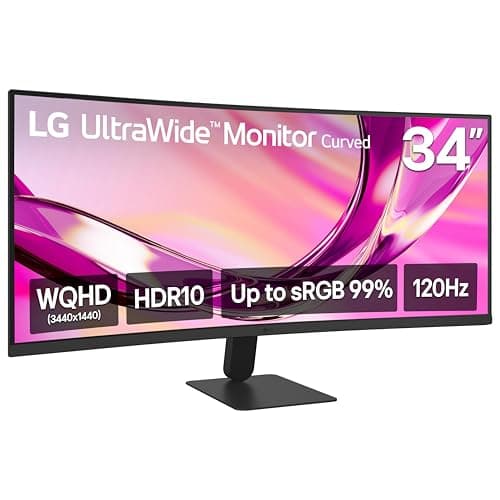
On any desk narrower than about 45 inches, one 34-inch ultrawide is the answer. A 34-inch 21:9 panel is roughly 32 inches wide; two 24-inch 16:9 panels side by side are roughly 43. That is an 11-inch difference on a surface where you are counting inches, and it is decided before taste, pixels or price enter the conversation.
Two screens still win on three things — strict task separation, total pixels if you buy 1440p, and the ability to add the second one later. Both routes are priced live below, and the arithmetic behind every number on this page is shown in the buyer’s guide so you can check it against your own desk.
The short answer
Measure the clear width of your desk. Under about 45 inches, an ultrawide is the only setup that fits side by side without overhang. Over about 48 inches, both are genuinely possible and the decision becomes what you do all day. Between the two, it depends on whether you are prepared to stack or angle the second screen.
| Your desk width | What fits | Verdict |
|---|
| Under 40 in | One screen, on an arm | Ultrawide, or a single 24–27 in |
| 40–45 in | Ultrawide fits; two 24s do not, side by side | Ultrawide |
| 45–48 in | Both, but two 24s leave almost no margin | Either — decide on the work, not the space |
| 48 in and up | Both comfortably; two 27s need 48 in alone | Either |
The width math, shown
Screens are sold by diagonal, which is the one dimension that does not tell you whether something fits. Panel width comes out of the diagonal and the aspect ratio:
width = diagonal × aspect-width ÷ √(aspect-width² + aspect-height²)
For a 34-inch 21:9 panel that is 34 × 21 ÷ √(441 + 81) = 34 × 21 ÷ 22.85 = 31.2 inches. For a 24-inch 16:9 panel it is 24 × 16 ÷ √(256 + 81) = 24 × 16 ÷ 18.36 = 20.9 inches. Add bezels and a finger’s gap between a pair and the real-world numbers land where the table below puts them.
| Setup | Panel width each | Total desk width used | Height |
|---|
| One 34 in ultrawide (21:9) | ~31.2 in | ~32 in with bezels | ~13.4 in |
| Two 22 in (16:9) | ~19.2 in | ~40 in | ~10.8 in |
| Two 24 in (16:9) | ~20.9 in | ~43 in | ~11.8 in |
| Two 27 in (16:9) | ~23.5 in | ~48 in | ~13.2 in |
Two things fall out of that table. First, the ultrawide is not a compromise on size — it is taller than a pair of 24s and only about a foot narrower than them. Second, the pair-of-27s setup that dominates desk-setup photography needs 48 inches of clear width before you have put a keyboard anywhere, which is more desk than most apartments have room for. Our desks for dual monitors roundup starts at 47 inches for exactly this reason.
The pixel math, which goes the other way
Width is the ultrawide’s argument. Pixels are the pair’s, but only at the right resolution:
- One 3440 × 1440 ultrawide = 4.95 million pixels
- Two 1920 × 1080 panels = 4.15 million pixels
- Two 2560 × 1440 panels = 7.37 million pixels
So a 34-inch ultrawide beats two 1080p screens on total working area andwidth, and loses decisively to two 1440p screens on pixels while still using 11 inches less desk. If you are comparing against two 1080p 24s — which is what most people actually own — the ultrawide is the larger workspace in every dimension.
Depth: the number that catches people out
A 34-inch ultrawide is about 13.4 inches tall, which is essentially the height of a 27-inch 16:9 screen (13.2 inches). Viewing distance follows height far more than it follows width, so an ultrawide wants roughly the same distance from your eyes as a 27 — about 26 to 28 inches on its own stand, or four inches less once it is on an arm and the base is gone. On a 16-to-20-inch-deep apartment desk that means the screen belongs on an arm, pushed back over the rear edge. The full distance table is in monitor size and viewing distance for a small desk.
The arm question, and why it is not optional here
Both routes need mounting hardware on a small desk, and they need different hardware.
- Ultrawide: one arm, rated for the weight and the leverage of a three-foot-wide panel. Budget arms that stop at 17.6 lb are not the right tool; the arms we rank for this start at 26.4 lb capacity and run to 44 lb. See best monitor arms for ultrawide screens.
- Two screens: one dual arm or two single arms. A dual arm uses a single clamp point and keeps the pair aligned; two singles let you place the screens independently, which is what you want if one is angled in. Both cases are argued in dual arm vs two single arms, and the products are in best dual monitor arms.
Either way, check the desk-edge thickness against the arm’s published clamp range before you buy — every range we have collected is in desk thickness: what will clamp to your desk. And on a thin or unbraced top, a heavy ultrawide at full reach is exactly the load that makes a desk flex, which is covered in how much weight can a desk hold.
Where two screens genuinely win
- Task separation. Two displays enforce a boundary the operating system understands: a full-screen call on one, work on the other, with no window that spans the join. On an ultrawide you get the same effect only with snapping software, and only if you use it.
- Buying incrementally. Most people already own one screen. Adding a second is the cheapest possible upgrade; replacing both with an ultrawide is not.
- Failure tolerance. When one panel dies you have half a setup, not none.
- Portrait.One screen rotated 90 degrees is the best way to read long documents and code, and no ultrawide can do it — see best vertical monitor arms and stacked mounts.
- Total pixels at 1440p.Two 2560 × 1440 panels deliver about 49 percent more pixels than a 3440 × 1440 ultrawide, if you have the width for them.
Where the ultrawide wins
- Desk width. About 11 inches less than a pair of 24s, which on a 40-inch desk is the difference between fitting and not.
- One of everything.One power cable, one video cable, one arm, one clamp point. On a small desk cable count is a space problem, not a tidiness problem — the method for handling either setup is in desk cable management.
- No bezel in the middle. A dual setup puts a seam exactly where a centered window wants to be, which is why people end up using one screen as the main and one as the side.
- Timeline work. Video, audio and spreadsheet work benefit from continuous horizontal space in a way that two screens cannot replicate.
The honest cases against each
Against the ultrawide: some full-screen apps and games letterbox at 21:9; video calls crop you into a wide strip unless the app handles the ratio; and window management needs deliberate setup or you end up with three maximized windows and wasted glass. It is also a single point of failure and a bigger check up front.
Against two screens:the width. Two 24s at 43 inches will physically overhang a 40-inch desk, and the standard fix — angling one screen in — puts the second display at a viewing angle you will not love for eight hours. Stacking is the other fix, and it works, but it needs a vertical arm and about 24 inches of wall height above the desk. Both layouts, with the clearances they need, are in how to fit two monitors on a small desk.
What we would buy, by desk
| Desk | Buy | Plus |
|---|
| 39–40 in narrow desk | One 34 in ultrawide | A single arm rated 22 lb or more |
| 47–48 in desk, mixed work | Two 24 in panels | A dual arm, or two singles if you angle one |
| Corner or L-shaped desk | Either — the corner gives you the width | See small corner and L-shaped desks |
| Desk you already own, one screen on it | Add a second panel | Cheapest upgrade available; keep the widths in mind |
| Shallow desk, under 18 in deep | Either, on an arm | The arm is what makes the depth work |
If you are still choosing the desk itself, size it before you size the screens: desk dimensions by room size gives the width your room can actually give you, and best monitors for a small desk covers the single-screen options if neither route above fits.